Most "compress video online" results assume you'll accept whatever the tool gives you. That's fine for a quick share — but if you've ever sent a 4K clip and watched it come back blurry, with chroma smearing and haloing around faces, you already know default presets aren't always kind. The good news: getting an order-of-magnitude smaller file with no visible quality loss isn't black magic. It comes down to two knobs (codec choice and bitrate target) plus avoiding three or four common mistakes. This guide walks through four methods worth recommending, side by side.
Why Video Compression Matters (Even With Cheap Storage)
Storage is cheap. Bandwidth still isn't, especially on mobile networks, hotel Wi-Fi, or when you're trying to email a 1.2 GB demo to a client whose mailbox caps at 25 MB. Compression is also why streaming works at all — Netflix doesn't ship master files; it ships adaptive bitrate ladders that compress aggressively at the bottom of the rung. Even local viewing benefits: a 4K HEVC file at 25 Mbps looks identical to the same source at 80 Mbps to most viewers, and the smaller file plays smoothly on machines that would chug on the original.
If you're publishing video to social, the platform will recompress your upload anyway — so handing them a leaner master saves upload time and gives you control over which artifacts survive that second pass. According to YouTube's recommended upload encoding settings, even 4K SDR content should land between 35–68 Mbps — most original captures from prosumer cameras far exceed that.
What "Without Losing Quality" Really Means
Quality loss is a spectrum, not a switch. Lossless encoding exists (FFV1, ProRes 4444, lossless H.264), but the files are huge — usually larger than the source. What people actually mean by "no quality loss" is visually transparent: the compressed version is indistinguishable from the original at normal viewing distance on a normal screen. The science here goes back to perceptual coding research summarized in standards like ITU-R BT.500, which still informs how modern encoders prioritize bits.
Three knobs control whether your output stays visually transparent:
- Codec. H.264 is universal. H.265 (HEVC) gives ~40% better compression at the same quality but has patent baggage and slower encodes. AV1 beats both but is slower still. For most uses today, H.264 at high quality or H.265 are the safe picks.
- Bitrate / CRF. Average bitrate caps how many bits per second the encoder can spend. CRF (Constant Rate Factor) lets you target a quality level instead, and the encoder spends bits where they matter. CRF 18–23 for H.264 is the sweet spot.
- Resolution and framerate. Downscaling 4K → 1080p saves bits cheaply if you don't need the resolution. Halving framerate saves bits but introduces motion judder, so it's only worth it for slideshow-style content.
Get these three right and you'll routinely shrink files by 60–90% with output indistinguishable from source.
Method 1: Filesloom Video Compressor (Browser, AI-Powered)
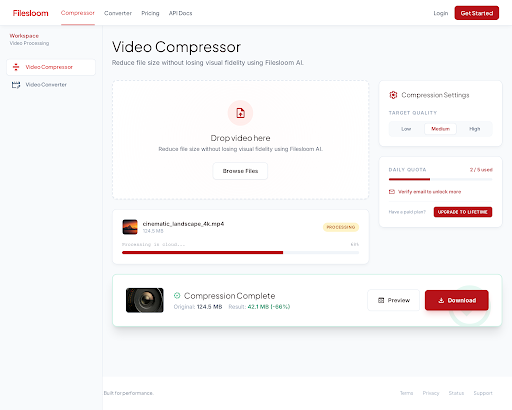
If you want compression that "just works" without thinking about codecs and bitrates, Filesloom Video Compressor is the path of least resistance. It runs entirely in your browser — no install, no account required for the free tier — and the AI engine picks per-frame quality targets based on visual complexity. Static frames get fewer bits, motion-heavy frames get more. The output ends up roughly 30% smaller than a fixed-bitrate encode at the same perceptual quality.
How to Compress with Filesloom
- Open filesloom.com/video-compressor.htm in any modern browser.
- Drag your file onto the upload area, or click "Choose file." Free tier accepts up to 100 MB; the lifetime plan removes the cap.
- Pick your quality preset — High preserves master-grade detail, Balanced is the everyday default, Smallest is best for messaging apps.
- Click "Compress Video" and wait. A 200 MB 1080p clip typically finishes in 30–60 seconds.
- Download the compressed file. Source and output are auto-deleted from Filesloom's servers within 24 hours.
The trade-off with any cloud tool is upload time — if you're on a 5 Mbps connection trying to compress a 2 GB file, the upload dominates. For files under ~500 MB on a normal home connection, the cloud path is faster than waiting for HandBrake to encode locally.
What's Different About the AI Pipeline
Most online compressors are a thin web wrapper around FFmpeg with fixed CRF values. Filesloom's AI scoring runs before encoding and adjusts the quantizer per scene, so a clip with two minutes of slow B-roll and ten seconds of fast pan gets bits allocated unequally. You can read more about the underlying approach on the Video Compressor product page or in the products and pricing overview.
Method 2: HandBrake (Desktop, Open Source)
HandBrake is the open-source desktop standby, and it's what most prosumer creators reach for when they want fine control without writing command lines. It's free, runs on Windows / macOS / Linux, and supports both H.264 and H.265.
How to Compress with HandBrake
- Download HandBrake from handbrake.fr — the binaries are signed and the source is on GitHub if you want to verify.
- Open HandBrake and drag your video into the source area.
- Pick a preset. "Fast 1080p30" is the sensible everyday choice. For modern streaming, "H.265 MKV 1080p30" gives smaller files at the same quality.
- Switch to the Video tab. Change the Quality slider to RF 20–22 for visually transparent output. Lower numbers mean bigger files.
- Pick a destination filename in the Save As field at the bottom.
- Click "Start Encode." Encoding speed depends on your CPU; expect roughly 1–4× real time for H.264 on a modern laptop.
HandBrake's strength is repeatable batch jobs — you can queue twenty files and walk away. Its weakness is the learning curve: the Video tab has a dozen settings that affect output, and the wrong combination can balloon file sizes.
Method 3: FFmpeg (Command Line, Maximum Control)
FFmpeg is what every other tool in this list ultimately calls under the hood. If you're comfortable with a terminal, you skip the GUI overhead and get total control.
Basic Compression Command
ffmpeg -i input.mp4 -c:v libx264 -crf 22 -preset medium -c:a aac -b:a 128k output.mp4
In plain English: take input.mp4, encode video with x264 at quality level 22 (visually transparent), use the "medium" speed/quality trade-off preset, and re-encode audio to 128 kbps AAC. For HEVC, swap libx264 for libx265.
When FFmpeg Is the Right Pick
- Batch scripting — you're processing dozens or hundreds of files via shell loops.
- Specific tweaks — you need to hardcode subtitles, change pixel format, scale and pad simultaneously, or chain filters.
- Pipelines — you're feeding output into another tool without writing intermediate files.
For a one-off compression, FFmpeg is overkill. For automation, nothing else comes close.
Method 4: VLC Media Player (Quick & Dirty)
VLC isn't primarily a compressor, but it has a Convert/Save feature that handles basic compression jobs. The interface is rough and the presets are fewer, but if VLC is already installed, it'll get you across the line.
How to Compress with VLC
- Open VLC. Go to Media → Convert / Save.
- Click "Add" and pick your source file. Click "Convert / Save" at the bottom.
- In the Profile dropdown, pick "Video - H.264 + MP3 (MP4)" for compatibility.
- Click the wrench icon next to Profile to open settings. Lower the bitrate (try 2000 kbps for 1080p) under the Video codec tab.
- Pick a destination file and click Start.
VLC's compression is functional but limited — there's no CRF mode, presets are crude, and the GUI hides settings unevenly across versions. Use it when you don't have anything else handy.
Comparison: When to Use Which
| Tool | Install | Speed | Quality Control | Best For |
|---|---|---|---|---|
| Filesloom | None (browser) | Fast for files <500 MB | AI-tuned per scene | One-off jobs, mobile, no install |
| HandBrake | Yes | CPU-bound | Excellent (CRF, presets) | Repeatable batches, GUI users |
| FFmpeg | Yes | CPU-bound | Total | Scripts, pipelines, edge cases |
| VLC | Already installed | Slow | Limited | Last resort if VLC is what you have |
Common Mistakes That Hurt Quality
A few patterns we see again and again:
Re-encoding what's already compressed. Every encode adds artifacts. If your source is already a YouTube download, an iPhone export, or a screen recording, additional passes compound the damage. Whenever possible, compress from the master.
Setting bitrate too low. Below ~2 Mbps for 1080p H.264, mosquito noise around edges and macroblocking in dark scenes become hard to ignore. CRF mode side-steps this — the encoder will spend whatever bits the content needs.
Wrong audio codec. Re-encoding stereo audio to a 64 kbps mono MP3 to "save space" sabotages a perfectly good video. AAC at 128–192 kbps is plenty for most content and barely costs anything in file size.
Forgetting to test on the actual playback device. A clip that looks fine on a 4K monitor may show banding on an OLED phone. Spot-check on the screens your audience actually uses.
Frequently Asked Questions
What's the best compression setting for YouTube uploads? YouTube re-encodes everything you upload, so the goal is feeding it a clean master. H.264 at CRF 18, 1080p or 4K, AAC audio at 192 kbps is what their recommended encoding guide suggests as a high-quality input. Going beyond that wastes upload bandwidth.
Will compression ever lose quality? Lossy compression always changes the data. The question is whether the change is visible. With sensible CRF settings (18–23 for H.264), output is visually transparent on normal viewing setups. On large screens or with sharp source material, drop CRF to 18 or below.
Is online compression safe? Depends on the service. Filesloom encrypts uploads in transit and auto-deletes within 24 hours — see the Privacy Policy for specifics. Avoid services that don't disclose their retention policy.
Can I compress without uploading anything? Yes — HandBrake, FFmpeg, and VLC all run locally and never touch the network. The trade-off is using your machine's CPU and time. Cloud tools win on speed for files under ~500 MB; local wins for anything larger or more sensitive.
How much smaller can videos get? Realistic ranges: 4K source → 1080p compressed = 80–95% smaller; 1080p source compressed at higher CRF = 50–80% smaller; archive-grade master to streamable file = often 90%+ smaller. Source quality matters more than tool choice.
Why is my compressed video bigger than the original? Three usual suspects: bitrate set too high, container overhead from re-encoding short clips, or the source was already heavily compressed (re-compressing barely helps). For sources under 30 seconds, sometimes the math just doesn't work out.
What's the difference between H.264 and H.265? H.265 (HEVC) gives roughly 40% better compression than H.264 at equivalent quality. The catch is patent licensing, slower encode times, and that some older devices can't decode it. H.264 remains the universal-compatibility choice; H.265 is great when you control playback or storage matters more than reach.
Does framerate affect compression? Yes — encoder cost scales roughly linearly with frame count. Halving framerate roughly halves encoder load and reduces file size proportionally, but introduces visible motion judder on anything with movement. Only worth it for slideshow content.
Can I batch-compress 100 videos at once? With HandBrake's queue, yes. With FFmpeg in a shell loop, definitely. With most cloud tools (including Filesloom), one file at a time on the free tier; lifetime plans on Filesloom remove queue limits — see pricing.
Is there a way to compress without re-encoding?
Yes, but only when you're changing the container, not the codec. FFmpeg's -c copy flag remuxes streams without re-encoding — useful for MKV → MP4 conversions but not for actual size reduction. Real compression always involves re-encoding.
Why do my compressed videos look pixelated on phones? Two common causes: aggressive bitrate caps that produce macroblocking, or sending 4K to a phone with a small screen via lossy chat apps that recompress further. Test playback on the actual target device — a clip that looks fine on a desktop monitor can fall apart on a 6-inch OLED.
Can I compress and convert formats at the same time? Yes. All four methods here re-encode video, which means the output container and codec are configurable independently. Going MKV → MP4 with simultaneous compression is a single operation in Filesloom Video Converter or any of the desktop tools.
For a deeper dive on format selection, see our companion piece on converting MKV to MP4 — many of the codec considerations carry over.