You've got an MKV file. You need an MP4 — because Final Cut won't import it, your phone refuses to play it, the upload form rejects it, or the editor you're sending it to "doesn't do MKV." Almost every guide will tell you to "convert" the file, which sounds like a re-encoding job that takes an hour. The truth is messier and more useful: most MKV files can become MP4 files in about 15 seconds, with zero quality change, because the underlying video and audio are already in formats MP4 supports. The container is just the wrapper, and the wrapper is what's incompatible. Here's how to do it right with four different tools, and when each one is genuinely the best pick.
Why MKV → MP4 Is Still the Most Common Conversion Request
MKV (Matroska) is a flexible container that supports almost everything — multiple audio tracks, subtitle tracks, chapter markers, fonts for typesetting. That flexibility is why it's the default for anime fan-subs, Plex libraries, and high-quality movie rips. MP4, by contrast, is the container that plays everywhere: iOS, Android, web browsers, Final Cut, Premiere, every social platform's upload pipeline. The mismatch is why the conversion request never goes away.
In most real cases, the actual video stream inside that MKV is already H.264 or H.265, and the audio is AAC — both of which MP4 supports natively. That means you don't need to re-encode anything. You just need to repackage the streams in an MP4 wrapper. This operation is called remuxing, and it takes seconds because no decoding or re-encoding happens.
Container vs Codec: What Actually Changes (And Doesn't)
A video file has two layers most people conflate:
- The container (MKV, MP4, MOV, AVI) — the wrapper that holds video, audio, subtitles, metadata, and tells players how everything is organized.
- The codecs (H.264, H.265, AV1 for video; AAC, MP3, FLAC for audio) — the actual compression formats applied to the streams.
A file ends in .mkv, but inside, the video might be H.264 (which MP4 supports) or H.265 (which MP4 also supports). If the codecs are MP4-compatible, you can swap containers with no re-encoding — remux. If they're not (e.g. MKV with VP9 video, or with raw FLAC audio that MP4 doesn't legally support), you have to re-encode the streams to compatible codecs — transcode. Transcoding takes minutes to hours; remuxing takes seconds and is mathematically lossless.
You can check what's inside any MKV with MediaInfo — drop the file in and look at the Format / Codec ID rows. If video says "AVC" (= H.264) or "HEVC" (= H.265), and audio says "AAC", you're remuxing. If you see "VP9" or "Opus", you're transcoding.
Method 1: Filesloom Video Converter (Browser, No Install)
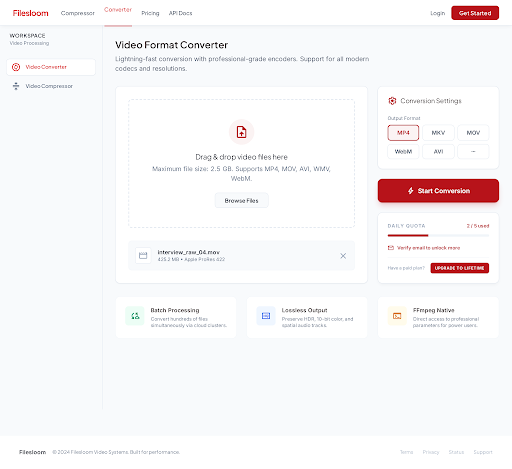
Filesloom Video Converter runs in any modern browser. Drag the MKV in, pick MP4 as the output, and it auto-detects whether the file can be remuxed or needs transcoding. For the common case (H.264 / AAC inside), it remuxes in seconds without burning your CPU. For the harder case (incompatible codecs), it transcodes with sensible quality defaults and you get an MP4 that plays everywhere.
How to Convert with Filesloom
- Open filesloom.com/video-converter.htm in your browser. No account or signup required for the free tier.
- Drag the MKV file onto the upload area, or click to browse. Free tier handles files up to 100 MB; the lifetime plan lifts that cap.
- Confirm MP4 in the output format dropdown (it's the default).
- Pick a quality preset — leave on "Original" for remuxable files; pick "High" for transcoded output if your input has incompatible codecs.
- Click "Convert Video." For remuxable files, expect 10–30 seconds end-to-end (mostly upload/download time). Transcoded jobs take longer, scaled to file length.
- Download the MP4. Files auto-delete from Filesloom servers within 24 hours per the Privacy Policy.
Why the Browser Path Is Often Faster Than Desktop Apps
Counter-intuitively, a remuxable MKV often goes faster through Filesloom than through HandBrake on the same machine — because HandBrake doesn't expose remux mode for MP4 output, so it always re-encodes. Filesloom skips re-encoding when the input streams are already MP4-compatible. For a 2 GB H.264/AAC MKV, that's the difference between 30 seconds and 30 minutes.
Method 2: HandBrake (Desktop, Free, Cross-Platform)
HandBrake is free, open-source, and runs on Windows / macOS / Linux. The catch: HandBrake always transcodes — it doesn't remux. Even if your MKV would convert losslessly with FFmpeg in ten seconds, HandBrake spends a few minutes re-encoding. That's fine if you also want to compress the file; it's wasteful if you don't.
How to Convert MKV with HandBrake
- Download HandBrake from handbrake.fr.
- Open the app and drag your MKV into the Source area.
- In the preset list (right side), pick "Fast 1080p30" or "Fast 1080p60" depending on your source framerate.
- In the Format dropdown at the top, choose "MP4" if it isn't already selected.
- Adjust the Quality slider to RF 18–22 if you want visually transparent output.
- Pick the output filename and folder in the Save As field at the bottom.
- Click "Start Encode." A 1-hour 1080p file typically takes 15–45 minutes depending on your CPU.
HandBrake is the right pick when you want to compress and convert in one pass — RF 22 will give you a noticeably smaller MP4 with no visible quality loss. It's the wrong pick if you just want a fast format change without quality compromise.
Method 3: FFmpeg (Remux: Lossless and Instant)
If you're comfortable with a terminal, FFmpeg's stream-copy mode is the fastest path possible. It's also free and runs everywhere.
Remux Without Re-Encoding
ffmpeg -i input.mkv -c copy -map 0 output.mp4
That command copies every video, audio, and subtitle stream from input.mkv directly into output.mp4 without decoding or re-encoding. A 4 GB file finishes in 5–15 seconds — basically as fast as your disk can read and write. Quality is bit-for-bit identical to the source.
If your MKV has subtitle tracks that MP4 doesn't support (like ASS/SSA), strip them with:
ffmpeg -i input.mkv -c:v copy -c:a copy -sn output.mp4
-sn means "no subtitles" — the rest copies cleanly.
When You Must Transcode
If MediaInfo shows incompatible codecs (VP9, Opus, FLAC), force re-encoding:
ffmpeg -i input.mkv -c:v libx264 -crf 20 -c:a aac -b:a 192k output.mp4
This produces an H.264 / AAC MP4 at high quality. For HEVC instead of H.264, swap libx264 for libx265.
The official FFmpeg documentation is dense but exhaustive — search for "stream copy" or "remux" for more variations.
Method 4: VLC's Convert/Save
VLC has built-in conversion that's adequate for the basics but more painful than the alternatives.
How to Convert MKV with VLC
- Open VLC. Go to Media → Convert / Save (or Media → Convert / Stream on macOS).
- Click "Add" and pick your MKV. Click "Convert / Save" at the bottom.
- From the Profile dropdown, pick "Video - H.264 + MP3 (MP4)" — note this re-encodes; there is no remux preset.
- Click the wrench icon next to Profile to inspect or change settings (most people leave defaults).
- Pick the destination filename and click Start.
VLC always transcodes (no remux mode), and the GUI hides quality settings unevenly across versions. Use it when VLC is already installed and you don't want to download anything else; otherwise pick one of the first three methods.
Choose by Use Case
| Use case | Best tool | Why |
|---|---|---|
| Single MKV, just need MP4 | Filesloom | Auto-detects remux opportunity, no install |
| Compress while converting | HandBrake | Best GUI for CRF + container change |
| Batch remux 50 files | FFmpeg | Shell loop, lossless, seconds per file |
| MKV with weird codecs (VP9, Opus) | FFmpeg or Filesloom | Both transcode safely with good defaults |
| Already have VLC, just need it once | VLC | One less download |
Troubleshooting Common Conversion Issues
The MP4 plays video but no audio.
The MKV has an audio codec MP4 doesn't support (often FLAC or DTS-HD). Solution: re-encode audio to AAC. In FFmpeg add -c:a aac -b:a 192k. In Filesloom, pick a quality preset and audio is automatically transcoded if needed.
Subtitles are gone after conversion.
MP4 doesn't natively support image-based subtitle formats (PGS, VobSub) or styled text formats (ASS/SSA) the same way MKV does. Either burn subtitles into the video, accept losing them, or extract them as a separate .srt file with MediaInfo or SubExtractor.
Output file is larger than the source. You probably re-encoded at a higher bitrate than the source's effective bitrate. For a lossless container change, use FFmpeg's stream-copy command above, or pick "Original" quality in Filesloom — these don't re-encode.
iPhone / iPad won't play the result. Apple devices want H.264 (Baseline / Main / High profiles) and AAC audio. If your remux produced HEVC video, re-encode to H.264 explicitly. The Apple HLS Authoring Spec lists the codec profiles iOS expects.
Frequently Asked Questions
Is MKV better than MP4? Different jobs. MKV is more flexible (multiple audio tracks, complex subtitles, chapters); MP4 is more compatible (plays everywhere). For archives and Plex libraries, MKV. For sharing, social, and mobile, MP4.
Is converting MKV to MP4 lossy?
Only if you re-encode. If the codecs inside the MKV are already MP4-compatible (H.264 / H.265 video + AAC audio), remuxing is bit-for-bit lossless. Filesloom Video Converter and FFmpeg's -c copy both detect this case automatically.
How long does MKV to MP4 conversion take? Remux: 5–30 seconds for typical files, mostly bottlenecked by disk speed (or upload speed for cloud tools). Transcode: depends on file length and your CPU — count on 0.5×–4× real time for H.264 on a modern laptop.
Why does my MKV file play but MP4 won't? Likely the MKV contains a codec MP4 doesn't support (VP9, Opus, FLAC) and the converter you used didn't transcode them. Run MediaInfo on the source to check, then either pick a tool that transcodes (Filesloom does this automatically) or use the FFmpeg transcode command above.
Can I batch-convert MKV to MP4?
Yes. For desktop, HandBrake's queue handles this; for command-line, a shell loop over ffmpeg -i ... -c copy is the fastest possible batch remux. Cloud tools usually limit batch sizes on free tiers — Filesloom's lifetime plan removes the limit.
Does converting reduce video quality? Remuxing doesn't change quality at all. Transcoding always introduces some loss (the math of lossy codecs guarantees it), but at sensible CRF values (18–22 for H.264), the loss is invisible at normal viewing distances.
What about HEVC (H.265) MKV files? MP4 supports H.265 perfectly. You can remux H.265 MKV to H.265 MP4 with no re-encoding. The catch is playback: not every device decodes H.265 (older Android, some browsers). If reach matters, transcode to H.264 instead.
Will Final Cut Pro / Premiere import MP4 files? Yes. That's the main reason people convert from MKV — most NLEs accept MP4 cleanly but choke on MKV. Re-encoding to a friendly codec like ProRes or DNxHR is sometimes still needed for editing performance, but the MP4 container itself imports fine.
Are online MKV to MP4 converters safe? Depends on the service's privacy practices. Filesloom encrypts uploads in transit, auto-deletes within 24 hours, and never uses your files for AI training — see the full Privacy Policy. Avoid services that don't disclose retention or training policies.
Can I convert MKV to MP4 on iPhone? Not natively — iOS Files app and Photos won't open MKV at all. The simplest path is uploading the MKV through Safari to Filesloom Video Converter and downloading the MP4 result, which iOS handles natively.
What's the maximum file size for online converters? Filesloom's free tier caps at 100 MB; lifetime plans remove that cap (see pricing). Other free services are typically 100–500 MB. For files larger than ~2 GB, desktop tools (HandBrake or FFmpeg) avoid upload time entirely.
Do I need to convert MKV at all if I just want to play it? No — VLC, MPV, MPC-HC, and Plex all play MKV natively across platforms. The only reason to convert is when a target system (iPhone, editing app, social upload) refuses to accept MKV.
For a deeper dive on how compression affects file size and quality choices, see our companion guide on compressing video without losing quality.